The Ultimate 11-Step Google Business Profile Optimization Guide

Google Business Profile dashboard and listing preview used in Ataullah Bokhari’s 11-Step GBP Optimization Guide

Google Business Profile optimization is the foundation of local visibility in 2025—yet nearly 56% of local listings remain incomplete or inconsistent, according to BrightLocal. That’s lost traffic, lost calls, and lost credibility.

If you want your business to appear in the Google Map Pack, attract verified reviews, and rank for high-intent “near me” searches, you need more than just a listing—you need a fully optimized Google Business Profile (GBP) that feeds Google exactly what it wants to see: relevance, authority, and activity.

Why This Google Business Profile Guide Matters?

In this step-by-step guide, I’ll show you 11 tried and true methods to optimize your GBP that mix old-school SEO techniques with new AI signals. These will help your business show up at the top of local search results. You will learn how to claim, verify, and improve your profile. You will also learn new ways to update your content, manage reviews, and get more people to interact with your Google posts, all of which will affect your local rankings.

Google Business Profile plays a central role in how businesses appear in Maps and local results, which explains why local SEO matters for visibility, trust, and real customer decisions.

This guide will help you show up where it matters most: at the top of Google Maps and local search. It doesn’t matter if you own a restaurant in London, a digital agency, or an eCommerce store with local pickups.

Who This Guide Is For?

This guide is designed for any business owner or marketer who wants to rank higher on Google Maps and dominate their local area with precision. If you run a service-based business, an eCommerce store with local pickup options, or a growing agency, knowing how to optimize your Google Business Profile will give you an edge over your competitors.

If you’re a local business owner, this guide will help you attract nearby customers who are actively searching for your services. For eCommerce brands, it bridges the gap between online visibility and local intent—connecting your store to high-converting “near me” searches. And for digital marketers, it gives them a technical guide on how to make clients more visible and show them how to get a measurable return on investment.

The truth is that your Google Business Profile is often the first thing people see about your brand. How well you optimize your profile will determine whether that impression turns into a click, call, or visit.

What Is Google Business Profile (GBP)?—The Fundamentals

Blurred example of a Google Business Profile panel showing address, hours, and business information

Google Business Profile (GBP), formerly known as Google My Business (GMB), is the free tool that helps businesses control how they appear on Google Search, Maps, and Shopping. According to a BrightLocal 2024 survey, over 86% of consumers use Google Maps to find local businesses every month, making an optimized GBP the most visible local marketing asset you can own.

The platform allows you to share critical details like business hours, contact information, photos, services, and reviews—all in one place where customers are already searching. In 2022, Google officially retired the “Google My Business” app and shifted all profile management directly into Google Search and Maps. This change made GBP easier to use, faster, and more accessible for both small business owners and brands with multiple locations.

To put it simply, your Google Business Profile is your digital storefront on the world’s largest search platform. When optimized correctly, it helps you appear in the Local Pack, boosts your map rankings, and drives measurable results—without paying for ads.

The Evolution from Google My Business to GBP

Side-by-side comparison of the old Google My Business dashboard and the new Google Business Profile interfaceGoogle rebranded Google My Business (GMB) to Google Business Profile (GBP) to move management directly into Google Search and Maps (goodbye standalone GMB dashboard/app).The change brought the “in-search” editing interface (also known as the New Merchant Experience), made it easier to verify videos and postcards, and added more tools to profiles, such as Posts, Products, Services, Messaging, and Call History. The bottom line is that the mission is still the same: to control your local presence. But the editing is faster, the features are better, and the integration with Google’s SERP surfaces is better.

How GBP Works Across Search, Maps & Shopping

Your profile powers three key surfaces:

  • Search (Knowledge Panel & Local Pack): Triggers when users search your brand or a local intent query (“best caterer near me”).
  • Maps: Ranking relies on relevance, distance, and prominence; engagement signals (calls, clicks, reviews, photo views, and posts) reinforce visibility.
  • Shopping tie-ins: GBP Product listings live on your profile; Google Shopping visibility still relies on Merchant Center + product feed. Use both for full coverage.


Why it matters:
Local intent is action-heavy—historically, a large share of nearby searches lead to calls or visits within 24 hours, so an optimized profile converts attention into revenue.

Key Differences Between GMB and GBP

  • Where you manage it: From a separate GMB dashboard → directly in Google Search/Maps (faster edits, fewer clicks).
  • Verification: More flexible options (incl. video), plus clearer prompts to resolve ownership/conflicts.
  • Features on profile: Posts, Products/Services, Q&A, Messaging, Call History, and Bookings surfaced more prominently.
  • Performance insights: Cleaner reporting inside Performance/Insights (queries, calls, messages, direction requests, website clicks).
  • Ecosystem alignment: GBP’s product editor + Merchant Center feed = broader product visibility across Google surfaces.

How Google Ranks GBP Listings

To rank higher in local search, you first need to understand how Google determines visibility for your Business Profile. Every profile’s performance depends on three key factors: relevance, distance, and prominence—each contributing differently to your overall ranking.

Relevance, Distance & Prominence — Core Ranking Factors

Relevance, Distance, and Prominence — Google’s three local ranking factors for Google Business Profile.
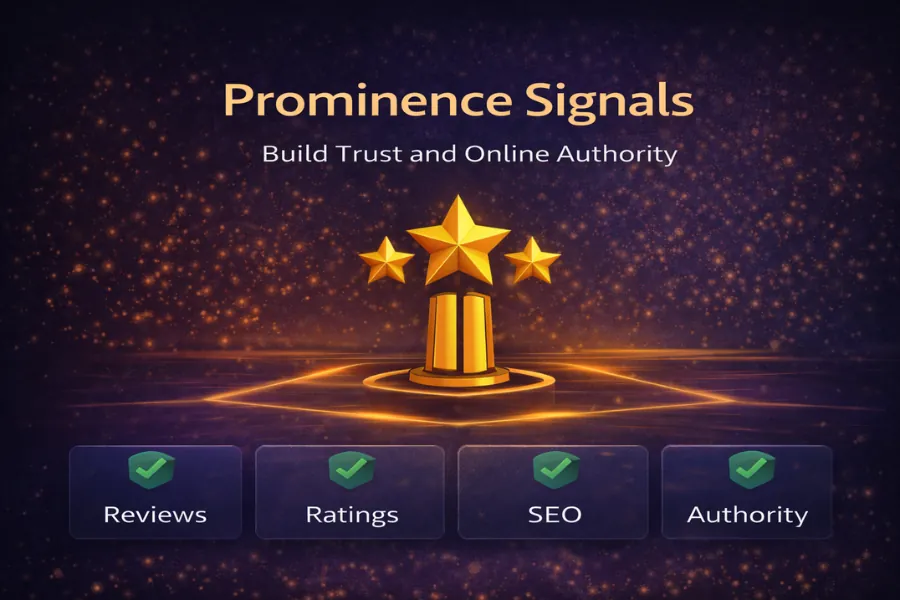
  • Relevance measures how well your Business Profile matches a user’s search intent.
  • Distance is based on proximity to the searcher’s location.
  • prominence reflects how well-known your business is across the web.

According to Google’s local ranking documentation, reviews and profile completeness significantly influence prominence, while location and category choice directly impact distance and relevance.

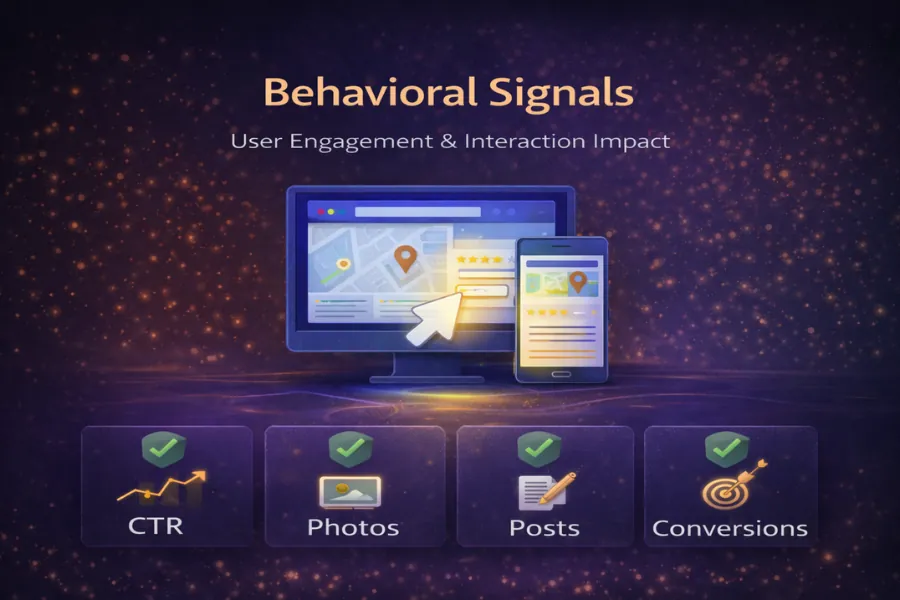
Behavioral Signals: Clicks, Calls, Messages & Posts

User engagement signals to Google that your business is both trustworthy and active. Profiles with consistent engagement—such as frequent post updates, photo uploads, and replies to reviews—can see up to 20% better map visibility (Moz Local Search Ranking Factors Report, 2024). When users call, message, or click through to your website, those signals reinforce trust and relevance.

Ranking Boosters: Engagement Frequency, Accuracy & Reviews

To climb the map rankings, focus on what Google measures most: accurate information, steady posting frequency, and high-quality reviews. Keep your business name, address, and phone number (NAP) consistent across directories, and update your GBP weekly. Even a single negative review left unanswered can reduce consumer trust by 35%, while consistent review responses signal reliability and improve conversion rates.

Step-by-Step — Setting Up Your Google Business Profile the Right Way

Getting your Google Business Profile set up correctly is the foundation of every other optimization you’ll do. According to Google’s own research, businesses with complete profiles are twice as likely to be considered reputable by consumers, and verified profiles receive up to 70% more local visits.

Follow these steps carefully to make sure your profile is accurate, verified, and ready to rank.

Step 1 — Sign in with Your Business Google Account

Use the Google Account you’ll manage your Business Profile with. This will serve as your main administrative access for verification, edits, and performance tracking inside Google Search and Maps.

Sign in to Google Maps or Business Profile Manager with your business account

💡 Pro Tips

  • Always use a business-associated Gmail, not a personal one — it secures ownership.
  • Add a backup manager or co-owner in case you ever lose access.
  • Never share your login credentials publicly or with temporary staff.

Step 2 — Search for Your Business on Google Maps

  • Open Google Maps, type your exact business name in the search bar, and press Enter.
    If your business already exists — even if unverified — it will appear in the suggestions list.
Search your business name in Google Maps search bar

💡 Pro Tips

  • Unverified listings usually appear greyed out or with limited information.
  • Avoid creating duplicates — check alternate spellings of your business name.
  • If your business was auto-added by Google, you’ll see a
    “Claim this Business”
    option later — follow that process to verify ownership.

Step 3 — If Not Found, Click “Add Your Business on Google Maps”

If your business isn’t listed, click “Add your business” from the Google Maps sidebar to begin.
You’ll now start creating your Business Profile manually — this ensures Google connects your new listing directly to your account.

Click Add Your Business on Google Maps to create your new Google Business Profile

Step 4 — Add Your Business Name

This is your business’s official title that appears on Google Maps, Search, and the Local Pack.

  • Use the same name as your signage and invoices — consistency matters.
  • Avoid adding services or cities to your business name (“Hotel Name Dubai” → ❌; “Hotel Name” → ✅).
  • Don’t include emojis or slogans.
  • Use your official business name only. Don’t add “keywords” like “Best” or “Near Me.”
Entering your business name during Google Business Profile setup

Step 5 — Choose Business Type

Decide how your business operates. This determines whether Google displays your address, service areas, or website link.

  • Local store: You’ll show a physical address.
  • Service business: You’ll show only service areas.
  • Online store: You can add your website; address optional.

💡 Pro Tips

  • If you deliver goods or visit clients, choose “Service area business.”
  • If you have both a physical store and service radius, you can combine both.
Choosing your business type during Google Business Profile setup

Step 6 — Add Business Category

Choose your primary business category — this determines which search results your profile can appear in.
You can add secondary categories later for related services, but your primary one carries the most weight.

💡 Pro Tips

  • Your category directly affects ranking and feature visibility (for example, choosing “Restaurant” unlocks menus and reservations).
  • Avoid unrelated categories — focus on your main business intent
Selecting the primary business category in Google Business Profile setup

Step 7 — Set Service Area (if applicable)

If your business delivers products or services to customers — such as catering, plumbing, or delivery —
add the cities or regions you serve.
This step appears if you previously selected “I deliver goods and services to customers.”

💡 Pro Tips

  • Start small: focus on 2–5 realistic service areas where you actively operate.
Adding your service areas in Google Business Profile setup

Step 8 — Add Your Business Address

If you have a storefront or office, enter your full street address. Make sure it’s consistent with your website and invoices.

Add your business address in Google Business Profile — enter full street, city, state, and postal code
📍 Note: Google automatically customizes the address fields based on your country selection.
Common formats include:

  • 🇺🇸 USA: Street → City → State → ZIP Code
  • 🇨🇦 Canada: Street → City → Province → Postal Code
  • 🇬🇧 UK: Street → Post Town → Postcode
  • 🇦🇪 UAE: Street → Emirate
  • 🇦🇺 Australia: Street → Suburb → State → Postcode

Always use your real, verifiable business address for better accuracy and local ranking.

💡 Pro Tips

  • Avoid virtual offices, coworking spaces, or P.O. boxes — Google bans them.
  • Don’t use abbreviations (“Rd” vs. “Road”) inconsistently.

Step 9 — Handle Duplicate Business Listings

If Google detects similar listings, it’ll show you possible matches during setup.
Choose “None of these” if none match your business.

If you notice a listing that might be yours or was auto-created by Google, you can later
claim that business profile
instead of creating a duplicate.

Google Business Profile duplicate listing suggestion screen — choose 'None of these' if no match

💡 Pro Tips

  • Claim only your legitimate profile — duplicates dilute ranking and can confuse customers.

Step 10 — Confirm Your Map Pin Location

Drag the red pin to your exact storefront entrance or office. Google uses this pin for driving directions and local ranking accuracy.

Google Maps red pin showing exact business entrance location for Google Business Profile setup

💡 Pro Tips

  • Use Street View to align with your front sign or entrance.
  • Avoid placing pins in parking lots or shared spaces.
  • Ensure your pin matches your physical signage and Street View preview.

Step 11 — Add Phone Number and Website (Optional but Recommended)

Add your primary contact number and official website. These details improve trust, conversions, and Google’s confidence in your business legitimacy.

Google Business Profile step showing fields to add phone number and website URL

💡 Pro Tips

  • Use a local area code for better geographic relevance.
  • Ensure URLs start with HTTPS (secured domain).
  • Use unique numbers for multi-branch businesses.

Step 12 — Verify Your Business (Postcard, Email, or Video)

Verification is the final gate to make your profile visible. It confirms your ownership and business legitimacy. Without verification, your GBP will not appear on Search or Maps.

Google Business Profile verification methods including postcard, email, phone, and video

💡 Pro Tips

  • Ensure your address matches your map pin and website.
  • Don’t submit multiple verification requests; wait for Google’s response.
  • Keep your verification code safe and enter it promptly.

Step 13 — Set Business Hours

Your operating hours help Google show your business when it’s open. Profiles with accurate hours get more visits and better customer satisfaction.

Google Business Profile interface showing fields to set business hours

💡 Pro Tips

  • Double-check hours before holidays or weekends.
  • Mark 24/7 services clearly for better exposure.
  • Use “Special Hours” for temporary updates instead of overwriting main times.
  • Only use “Temporarily Closed” if truly closed — misuse lowers visibility.

Step 14 — Write a Compelling Business Description

This is your elevator pitch for both Google and customers — explaining who you are, what you do, and why you stand out.

Google Business Profile business description input field example

💡 Pro Tips

  • Stay under 750 characters; concise and clear.
  • Use natural language — not promotional hype.
  • Update quarterly with new achievements.

Step 15 — Add Photos & Videos that Convert

Photos and videos build authenticity. Businesses with visuals get up to 42% more direction requests and 35% more website clicks.

Google Business Profile photo upload section with examples of logo, interior, and exterior images

💡 Pro Tips

  • Use original, high-resolution images (1000 × 600 px min).
  • Geotag before upload for stronger local relevance.
  • Update visuals every 2–3 weeks to show activity.

Step 16 — Publish Your First Google Post

Google Posts let you share updates, offers, and news directly in your profile — boosting engagement and visibility.

Google Business Profile interface for creating and publishing a post with image and CTA

💡 Pro Tips

  • Post weekly; consistency boosts ranking freshness.
  • Use CTA buttons like “Call Now,” “Book Online,” or “Learn More.”
  • Attach engaging visuals; they improve CTR by 50 % +.
  • Track post traffic with UTM-tagged links.

Bonus Setup — (Add More Information) Google Services Inside GBP

Specific Services You Offer

List every major service or product you provide. Each service entry can include a title, short description, and (optional) price.

💡 Pro Tips

  • Add at least 5–7 detailed services using natural, keyword-rich language.
  • Update them regularly to reflect seasonal or new offerings.
Add specific services inside Google Business Profile interface

Activate Messaging and Auto Replies

Turn on Messaging so customers can reach you directly from your GBP panel. Set clear business hours for replies and enable automated messages for common questions.

💡 Pro Tips

  • Respond within 24 hours to improve engagement scores.
  • Use auto replies to acknowledge after-hours messages (“Thanks for contacting us — we’ll reply soon!”).
  • Keep messages professional and consistent with your brand tone.
Enable messaging and auto replies in Google Business Profile settings

Google Ads Smart Campaigns Integration

Link your GBP with Google Ads Smart Campaigns to promote your business in Maps and Local Search ads.

💡 Pro Tips

  • Use location extensions to connect your ads directly to your GBP listing.
  • Start small with radius-based targeting before expanding.
Connect Google Business Profile with Google Ads Smart Campaigns

Bookings Integration (e.g., Calendly, Square)

Enable direct booking options so users can schedule services or appointments right from your profile.

💡 Pro Tips

  • Use a Google-approved scheduling partner (e.g., Calendly, Square Appointments).
  • Keep your booking calendar synced with your website or CRM.
Integrate booking options such as Calendly or Square with Google Business Profile

How to Claim an Existing, Unverified Google Business Profile

If your business already appears on Google Maps but shows “Claim this business” or “Own this business?”, it means a listing exists but isn’t verified. Claiming it allows you to take ownership, manage information, respond to reviews, and unlock full visibility features.

Step 1 — Search Your Business on Google Maps

Open Google Maps and enter your exact business name. Check if your business already appears as a suggested location. If it’s unverified, you’ll see “Claim this business” or “Own this business?” under the name.

💡 Pro Tips

  • Use your exact registered business name for best results — avoid abbreviations.
  • Look for duplicate profiles that may already exist under slight name variations.
  • Take a quick screenshot of any duplicates for later cleanup.
  • Always click through the official Google interface, not third-party claim sites.
  • Ensure you’re logged into the correct Google Account before proceeding.
Search your business on Google Maps and find Claim this business option

Step 2 — Click “Claim This Business” or “Own This Business?” & Select Manage

After clicking “Claim this business”, select “Manage Now”. Google will prompt you to confirm ownership through your business email or verification options (like postcard, phone, or video).

💡 Pro Tips

  • Use your official business email domain for verification — it increases approval success.
  • If Google detects another owner, follow the request access process instead of creating a duplicate.
Click Manage Now to start claiming your Google Business Profile

Step 3 — Request Verification & Ownership Approval

Once you’ve claimed ownership, Google will offer verification options based on your business type and category. Depending on your region, one or more of the following methods may appear:

  • Postcard verification (sent to your business address)
  • Phone or SMS code
  • Email verification (available for select profiles)
  • Live or recorded video verification

Once verified, your business will appear in Search and Maps, giving you full access to posts, insights, and reviews.

💡 Pro Tips

  • Verification postcards usually arrive within 5–14 days — don’t request duplicates too soon.
  • Enter the verification code exactly as provided — it expires after a few days.
  • Store your verified Google Account securely — it’s your permanent ownership key.
Select verification method for Google Business Profile such as phone, email, or video

How to Request Access to a Google Business Profile Managed by Someone Else

If your business profile is already verified by another person—maybe a former employee, agency, or partner—you can request ownership access instead of creating a duplicate listing. This process keeps your local authority intact and prevents ranking conflicts.

Step 1 — Locate the Profile in Search or Maps

Go to Google Maps or Google Search and look up your exact business name.

  • Select the existing profile from the results.
  • If it’s already claimed, you’ll see the note: “This business is claimed.”
  • Select “Own this business?” to start the process of requesting access to your Google Business Profile.

💡 Pro Tips

  • Don’t create a new listing — that causes duplicate data and ranking dilution.
  • Confirm the location and category match your current business before proceeding.
  • Verify the address and phone number to ensure you’re requesting the correct listing.
  • If you see “Suggest an edit” instead of “Request access,” the profile may already be claimed under another account.
  • Use Incognito mode if you manage multiple Google accounts to prevent login mix-ups.
Locate your existing Google Business Profile in Maps or Search

Step 2 — Click “Request Access”

Click “Request access”  under the business name. Google will open a form asking for your contact details and business role. You’ll also specify your relationship to the business (owner, manager, marketing team, etc.).

💡 Pro Tips

  • Use your official business email (e.g., @yourdomain.com) when submitting the request — it increases approval odds.
Click Request Access on Google Business Profile to claim management rights

Step 3 — Complete & Submit the Access Form

Fill out all required fields (access level, and relation to the business) carefully, then submit the form. Once submitted, Google will send an email to the current profile owner asking them to approve or deny the request. If the owner doesn’t respond within 3 to 7 days, Google may automatically grant you access after verification checks.

💡 Pro Tips

  • Watch for a confirmation email from Google — it will guide you on next steps.
  • Stay professional when following up; ownership disputes can delay approval.
  • Keep documentation (e.g., business license, utility bill) ready if Google requests ownership proof.
Submit ownership request form for Google Business Profile access

Step 4 — View Your Ownership Request Status

After submitting your claim, Google displays a confirmation message showing that your ownership request has been sent. You can click “View Request” to monitor its progress or recheck after a few days.

💡 Pro Tips

  • Google typically allows 3–7 days for the current owner to respond.
  • Check your inbox and spam folder regularly for Google’s updates.
  • If no action is taken, Google may release ownership to you automatically after verification.
View your ownership request status on Google Business Profile

Step 5 — Respond to Ownership Requests (If You’re the Current Owner)

If you receive an email titled “You’ve received an ownership request”, open it and click “Respond”. You can approve or deny the new request directly from your email or Business Profile dashboard.

💡 Pro Tips

  • Always verify the requester’s email before granting access — it should match your business or agency domain.
  • If the request is legitimate, approve it promptly to avoid delays in updates or management.
  • If you deny access, Google will notify the requester, and they may submit proof of ownership.
Respond to ownership request email for Google Business Profile

Key GBP Features You Must Leverage

Once your Google Business Profile is verified and active, the real optimization begins.
Google keeps adding features that help you connect with customers, gather insights, and boost visibility without ads.
Here are the core tools every business should be using.

Google Posts

Share short updates, announcements, or offers directly on your profile.
Posts appear on both Google Search and Maps, helping customers see what’s new before they even visit your website.

💡 Pro Tips

  • Post weekly for consistent activity signals.
  • Keep your message under 300 words and always include a CTA like “Call Now” or “Book Online.”
  • Add an image—posts with visuals get 65% more engagement (Google internal data).

Products & Services Display

Showcase what you sell or offer directly inside your Google Business Profile. You can add categories, pricing, and short descriptions for each product or service to help customers make quick decisions.

💡 Pro Tips

  • Use keyword-rich yet natural product titles to improve discoverability.
  • Keep service descriptions factual, not overly promotional or “salesy.”
  • Update your list seasonally or whenever you launch new products or services.
  • Add at least one image per product or service to increase engagement.
Add and display products or services in Google Business Profile panel

Messaging & Q&A

Allow customers to message you directly from your profile and publicly answer FAQs.
Quick replies improve trust and can turn inquiries into immediate bookings.

💡 Pro Tips

  • Respond within 24 hours—Google may flag inactive messaging accounts.
  • Pin top Q&A responses to avoid repetitive questions.
  • Add short links in replies for directions or menu access.

Bookings & Appointments

Integrate scheduling tools like Calendly, Square, or Reserve with Google to let users book instantly.
Appointments show up right in your business panel.

💡 Pro Tips

  • Sync your booking calendar to prevent double slots.
  • Confirm bookings via SMS or email for professionalism.
  • Highlight “Book Now” in your GBP posts for extra conversions.

Performance Insights & Analytics

Track calls, website clicks, direction requests, and post engagement directly inside your dashboard.
These insights help you understand which actions drive real customer behavior.

💡 Pro Tips

  • Review metrics monthly to spot traffic or review trends.
  • Use UTM-tagged links so GBP traffic appears clearly in GA4.
  • Note spikes after specific posts or reviews—they reveal what resonates most.

How to Optimize Your Google Business Profile — Proven Strategies

Once your Google Business Profile is set up, it’s time to fine-tune every element for maximum local visibility. Optimization isn’t just about adding details — it’s about sending Google consistent, engagement-rich signals that prove your business is active, relevant, and trustworthy.

Step 1 — Complete Every Field (NAP, Hours, Website, Etc.)

Google prioritizes complete profiles in both Maps and Search. Fill out every available section, including NAP (Name, Address, Phone), website, categories, and service areas.

  • Fill out every section — even optional ones like services and attributes.
  • Match your NAP (Name, Address, Phone) data across all platforms.
  • Add your website URL, business hours, and appointment link for conversions.
  • Update operating hours before holidays — Google tracks accuracy over time.
  • Use your main website as the landing page, not social profiles or directories.
Google Business Profile NAP and hours optimization example by Ataullah Bokhari

Step 2-3 — Choose Correct Categories & Attributes

Your category selection determines what keywords you’ll rank for. Attributes (like “Wi-Fi,” “Delivery,” or “Pet-Friendly”) help Google refine relevance.

  • Avoid stacking irrelevant categories — focus on your core service.
  • Use a primary category that best matches your main service.
  • Add secondary categories only when relevant.
How to choose business category and attributes in Google Business Profile setup

Step 4 — Write a Keyword-Optimized Description

Your business description gives context to both Google and potential customers. Use natural keywords that describe your services and location.

  • Keep it between 700–750 characters and use natural keyword phrasing.
  • Add one primary keyword (e.g., “Restaurant in Dubai”) within the first 150 characters.
  • Avoid superlatives like “best” or “#1” — Google filters them out of snippets.
  • Mention your city and main service for stronger local signals.
  • Write for humans first, algorithms second.
Google Business Profile description example with local keyword optimization

Step 5 — Add Geo-Tagged Photos Regularly

Photos are ranking signals — they show engagement and freshness. Google correlates frequent photo uploads with trust and relevance.

  • Use geo-tagged images (GPS data embedded) for location accuracy.
  • Upload authentic, well-lit photos instead of stock images.
  • Aim for 5–10 new uploads per month.
  • Use consistent visual branding — same colors, logo watermark, or theme.
Example of geo-tagged photo uploads inside Google Business Profile dashboard

Step 6-7 — Collect & Respond to Reviews

Reviews are the backbone of local SEO. Profiles with a steady stream of authentic reviews consistently outperform stagnant ones.

  • Encourage happy customers to leave feedback immediately after service.
  • Ask for customer reviews and respond promptly — engagement boosts trust and ranking.
  • Reply to every review within 24–48 hours — engagement matters as much as rating.
  • Never buy fake reviews — Google’s filters are ruthless.
Google Business Profile review collection and response example

Step 8 — Post Weekly Updates and Offers

Google Posts help keep your profile active and visible. Each new post signals that your business is alive and worth ranking.

  • Use eye-catching visuals and short CTAs (“Book Now,” “Get a Quote”).
  • Add UTM tags to links for traffic tracking in GA4.
  • Reuse top-performing posts with small updates — consistency beats novelty.
Google Business Profile post creation example with image and CTA

Step 9 — Feature Products and Service Cards

Display key offerings directly on your profile so users can explore before visiting your site. Each service or product card helps increase dwell time and conversions.

  • Add clear titles, short benefit-driven descriptions, and images.
  • Don’t overload with options — showcase what defines your business best.
  • Keep pricing transparent — it builds trust.
  • Highlight your top products and services directly in GBP to attract more clicks.
Example of GBP product and service showcase cards

Step 10 — Engage Through Q&A & Messaging

Engagement metrics play a bigger role in rankings than most realize. Respond to questions publicly and message inquiries quickly.

  • Pre-populate common questions (like “Do you offer home delivery?”) with keyword-based answers.
  • Avoid leaving “zero-answer” Q&As visible — it hurts credibility.
  • Keep response times short — Google highlights responsive businesses.
  • Respond quickly to customer questions and use messaging to maintain engagement.
Google Business Profile Q&A section with active responses

Step 11 — Track Engagement Using Insights & UTM

GBP Insights shows how people find and interact with your listing. Adding UTM parameters helps you track every click inside Google Analytics.

  • Create custom UTM links for posts, buttons, and products.
  • Analyze monthly metrics to identify what drives phone calls and direction requests.
  • Use data to adjust posting frequency and content themes.
GBP Insights dashboard showing analytics and UTM-based tracking example

Benefits of a Fully Optimized Google Business Profile

Infographic showing four benefits of an optimized Google Business Profile: higher Map rankings, stronger review trust, increased CTR with visuals, and faster conversions through messaging.

When your Google Business Profile is properly optimized, it becomes a 24/7 local marketing machine. It’s not just about showing up—it’s about standing out, earning clicks, and driving real customer actions.

Rank Higher on Maps and Local Finder

Google rewards active and complete profiles. Optimized profiles dominate the Local 3-Pack—those top three results that get nearly 70% of local search clicks (Moz Local Search Study, 2024). Businesses that update regularly and engage with customers are 2.7× more likely to be considered “reputable” by Google’s algorithm—boosting rankings in Maps and the Local Pack.

Gain Customer Trust Through Authentic Reviews

Online reviews are modern word-of-mouth. Profiles with consistent, authentic reviews are 70% more likely to convert local searchers into paying customers. Google also ranks businesses with more positive review activity higher in Maps results. BrightLocal found that 87% of consumers read reviews before choosing a business, and businesses with more than 50 reviews see a 4.6x higher conversion rate.

Boost CTR with Visuals & CTAs

Photos and videos directly influence user actions. Listings with more than 100 visuals generate 520% more calls and 2,700% more map views compared to photo-poor profiles. Eye-catching visuals attract clicks and establish instant trust. Listings with updated images get 35% more website clicks and 42% more requests for directions than those without.

Convert Leads Faster with Messaging & Bookings

An optimized GBP works like a conversion funnel. From direction requests to instant calls, every action builds micro-conversions that lead to real results. Direct communication through GBP increases conversion chances dramatically. Customers who message a business through GBP are twice as likely to become paying clients.

Google Business Profile Optimization Checklist

Want to make sure your Google Business Profile is fully optimized?
Here’s a quick-access checklist that summarizes the essential 11 steps and helps you spot missed opportunities before they cost you visibility.

This checklist ensures your GBP is verified, complete, active, and optimized for both local and eCommerce visibility.

    Common GBP Mistakes That Kill Performance (and How to Avoid Them)

    Infographic showing common Google Business Profile mistakes and their correct optimization fixes


    Keyword-Stuffed Business Names

    Adding extra keywords to your business name (“Best Pizza in New York | Free Delivery”) can trigger Google penalties.
    Keep it consistent with your legal or registered name.

    💡 Pro Tips

    • Use keywords in your description or posts, not your name.
    • Report spammy competitors through Google’s “Suggest an edit” feature.

    Ignoring or Deleting Negative Reviews

    Bad reviews happen—deleting or ignoring them looks worse. Respond calmly and show that you take customer feedback seriously.

    💡 Pro Tips

    • Thank the reviewer, acknowledge the issue, and offer to resolve it offline.
    • Consistent review replies improve trust and can increase conversions by up to 33% (BrightLocal).

    Duplicate Listings or Fake Locations

    Duplicate or fake profiles confuse Google’s algorithm and split your ranking power. Always maintain one verified profile per business location.

    💡 Pro Tips

    • Search for duplicates using your phone number or address.
    • If you find any, mark one as “duplicate” and merge via Google support.

    Inconsistent or Incomplete Information

    Missing or outdated data signals unreliability to Google. Even small NAP (Name, Address, Phone) inconsistencies can hurt ranking and trust.

    💡 Pro Tips

    • Audit your listing quarterly using a tool like BrightLocal or Whitespark.
    • Keep your hours and contact info updated during holidays or moves.

    No Regular Posts or Tracking Tags

    If your profile is inactive, Google assumes your business might be too. Frequent posts and tracked links show engagement and authority.

    💡 Pro Tips

    • Post at least once per week with fresh images and CTAs.
    • Add UTM parameters to measure GBP post performance in GA4.

    Missing Products, Services, or Attributes

    Empty product or service tabs mean missed search opportunities. Customers often explore listings with complete service details before visiting a website.

    💡 Pro Tips

    • Add all major services with short, keyword-rich descriptions.
    • Review them monthly to ensure they align with your main offerings.

    Spammy Tactics & Review Manipulation

    Google’s algorithm and human reviewers can flag fake or incentivized reviews. Inconsistent data across your website, citations, and profile lowers trust scores and visibility. Buying fake reviews or using misleading tactics is one of the fastest ways to lose rankings. Google’s spam filters are getting stricter every year.

    💡 Pro Tips

    • Focus on authentic, verified reviews from real customers.
    • Use follow-up emails or QR cards for legitimate review requests.

    ✅ Quick Fix:
    Keep all business information accurate, consistent, and transparent — it’s better to be authentic and active than to over-optimize.

    Inactive Messaging or Unanswered Q&A

    Neglecting interactive features like Messaging or Q&A tells Google your business isn’t actively engaging with customers. These features build real-time trust—and Google’s local algorithm tracks how quickly and consistently you respond.
    A profile that rarely posts, ignores questions, or leaves messages unanswered loses visibility over time. Regular engagement shows Google your business is responsive, customer-focused, and relevant—which can improve your ranking stability and click-through rates.

    💡 Pro Tips

    • Reply to messages within 24 hours.
    • Review Q&A weekly and pin helpful answers for visibility.

    eCommerce + Local SEO Integration — One Profile, Two Channels

    Infographic showing eCommerce and Local SEO integration using Google Business Profile including warehouses, landing pages, product feeds, and local pages

    Google Business Profile isn’t just for local stores—it’s now a crucial visibility channel for eCommerce brands too.
    By connecting your GBP to your online store, you can blend local intent and product discovery into one seamless search experience.

    Your GBP acts as your local touchpoint, while your eCommerce site drives the transaction—together creating a powerful dual-channel SEO strategy.

    GBP for Warehouses, Pickup Points & Retail Showrooms

    Even if your main store is online, GBP lets you highlight pickup points, partner outlets, or showrooms on Maps.

    If you offer click-and-collect or have showrooms, GBP ensures your locations appear in “near me” searches. Even if your main site drives national traffic, Google surfaces local pickup availability directly from your profile.

    💡 Pro Tips

    • Add every warehouse or pickup point as a verified location with consistent NAP to appear in local “near me” and available nearby product searches.
    • Use “Service Area Business” for delivery-only or regional fulfillment centers.
    • Upload photos of storefronts or pickup counters—visuals help customers find you faster.

    eCommerce SEO Landing Pages with GBP Integration

    Tie your product and category landing pages directly to your GBP by linking them under “Website” or “Products” Each location page on your website should be optimized with local keywords and schema. When done right, these pages support your GBP rankings while also capturing organic search traffic.

    💡 Pro Tips

    • Add UTM parameters to track GBP-to-site traffic inside GA4.
    • Use location-based keywords on those landing pages (e.g., “Shop Electronics in Dubai”).
    • Mirror your GBP categories within your site navigation to reinforce topical relevance.
    • Link your GBP to a location-specific landing page, not your homepage—it improves conversions and user experience.

    Product Feed + GBP Product Panels

    Google now shows GBP product panels in Search and Maps, often sourced from your product feed or manual uploads. Connect your Merchant Center feed to display your top products inside your GBP. Integrating your Google Merchant Center or eCommerce product feed keeps listings dynamic and keyword-aligned.
    These appear as “See What’s In Store” carousels on Google Search.

    💡 Pro Tips

    • Keep product titles consistent across Merchant Center and GBP.
    • Refresh product data every 30 days to maintain visibility.
    • Add clear pricing and availability tags—Google rewards transparency.
    • Use clear product titles, high-quality images, and price accuracy to appear in “See What’s in Store” (SWIS) panels.

    If you’re scaling your store’s local reach, working with an eCommerce SEO Consultant ensures consistent optimization between your GBP and product listings. and get a detailed audit on how your store can appear in both organic and local searches.

    Local Pages + GBP = Product Visibility

    Your local landing pages and GBP should complement, not duplicate, each other. Local pages help capture organic search; your GBP closes the conversion loop. When you connect optimized local pages with your GBP, Google gains reinforced location signals—increasing the odds of your products showing in local intent results.

    💡 Pro Tips

    • Use the same NAP and schema markup across all local pages.
    • Internally link from GBP-focused posts to those local landing pages.
    • Highlight customer photos or reviews from that region to boost trust.
    • Add structured data (LocalBusiness, Product, and Offer schema) to your product and location pages for stronger visibility.

    Your Local SEO Growth Plan – What Happens Next?

    Final Thought from a Local SEO Expert (Ataullah Bokhari)

    In local SEO, your Google Business Profile isn’t just a listing—it’s your brand’s first handshake with every nearby customer. You can spend thousands on ads, but if your GBP looks neglected, your leads will scroll right past.

    I’ve helped dozens of businesses dominate local search—including a hotel that ranked top 3 in Google Maps without a website or Facebook page. That project proved one thing: when optimized properly, your GBP alone can generate bookings, calls, and revenue.

    👉 See the full story here:
    Hotel Zia GBP Optimization Case Study — How I Ranked a Hotel Without a Website or Facebook

    I’ve seen small, local businesses beat national competitors simply by mastering one word: consistency.
    Consistency in posts.
    Consistency in reviews.
    Consistency in how they show up—everywhere.

    Local SEO isn’t about hacks anymore; it’s about credibility signals that compound over time. Every optimized photo, every answered review, and every weekly update tells Google you’re active, trusted, and relevant to your community.

    💡 Pro Insight

    Start treating your Google Business Profile like your mini-website inside Google. Feed it fresh updates, visuals, and engagement — and watch it climb to the top of Maps.

    📍 Ready to turn your Google Business Profile into a lead magnet?

    Let’s audit your current profile, fix what’s holding it back,
    and position you where real customers are searching — on Google Maps.

    Frequently Asked Questions

    Is Google Business Profile free?

    Yes. Google Business Profile (GBP) is completely free to create, manage, and update. You don’t need to pay to appear on Google Maps or in local search results—optimization and engagement are what make your profile perform better.

    What is the best way to optimize a Google Business Profile for higher rankings?

    The best way to optimize your GBP is to complete every field, post weekly updates, and earn consistent reviews. Keep your NAP (Name, Address, Phone) identical across the web and upload new geo-tagged photos every month.

    How often should I post or update my Google Business Profile?

    Post at least once per week and refresh your photos quarterly. Regular posting keeps your profile active in Google’s system and improves engagement—a key factor for staying visible in the Local 3-Pack.

    How can I get more reviews on my Google Business Profile naturally?

    Ask customers for reviews right after service delivery. Use a short, branded review link and make it easy to leave feedback. Google rewards steady, authentic review growth—not sudden spikes.

    What type of photos perform best on Google Business Profile?

    Real images of your team, location, and products perform best. According to BrightLocal, businesses with 100+ photos receive 520% more calls and 2,700% more map views than those with few visuals. Avoid stock or heavily edited photos.

    Can I optimize GBP for multiple business locations?

    Yes—use Google Business Profile Manager to manage multiple verified locations. Each branch should have consistent NAP data but a unique description, service list, and photo set to maintain authenticity and avoid duplication.

    How do Google Posts help with local SEO?

    Google Posts let Google know that your business is open and trustworthy. Each post adds content to your listing that is full of keywords, which helps boost CTR and engagement. Think of them as short, visual blog posts that update your profile every week.

    What are the most common mistakes that hurt GBP performance?

    Keyword-stuffed names, ignoring reviews, inactive posting, fake locations, and missing products or services all reduce visibility. Avoid these mistakes and focus on engagement—accuracy and frequency matter more than size or budget.

    How long does it take to see results from GBP optimization?

    Most businesses see noticeable improvement in 4–8 weeks, depending on competition and engagement. Regular updates, reviews, and posts speed up performance gains and help sustain long-term rankings.

    Work With Ataullah Bokhari

    Need help ranking your business in Google Maps? Let’s audit, optimize, and grow your Google Business Profile with a strategy tailored to your local audience.

    References

    Ataullah Bokhari

    Ataullah Bokhari is an SEO & Digital Marketing Consultant helping businesses unlock sustainable organic growth through advanced Organic SEO, Local SEO, eCommerce SEO, SEM, and AI-driven optimization. His strategies deliver clarity, ROI, and long-term performance.

    https://ataullahbokhari.com

    Leave a Reply

    Your email address will not be published. Required fields are marked *